Many people get confused when using greater than or equal to in Excel. This small symbol combination, >=, might seem tricky at first, but it’s actually simple once you understand how it works. In Excel, this operator is used to compare numbers, dates, or other values to see if one is bigger than or equal to another.
If you’ve ever wondered whether to use > or >= in your formulas, you’re not alone. Mixing them up can lead to errors in calculations, reports, or data analysis.
In this guide, you will learn:
- What greater than or equal to in Excel means
- How it differs from just “greater than”
- Correct usage with simple examples
- Common mistakes and how to avoid them
By the end, even beginners will confidently use this operator in their spreadsheets.
What Does Each Word Mean?
Greater Than (>)
- Meaning: Checks if one value is strictly bigger than another.
- Part of Speech: Operator (mathematical symbol in Excel).
- Examples in Excel:
=A1>B1→ True if A1 is bigger than B1=10>5→ True=C2>100→ Checks if C2 has a number larger than 100
Think of it like comparing apples: “Is my apple bigger than yours?”
Greater Than or Equal To (>=)
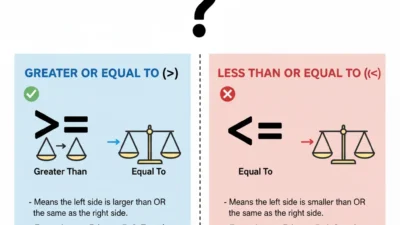
- Meaning: Checks if a value is either bigger than or exactly equal to another value.
- Part of Speech: Operator (mathematical symbol in Excel).
- Examples in Excel:
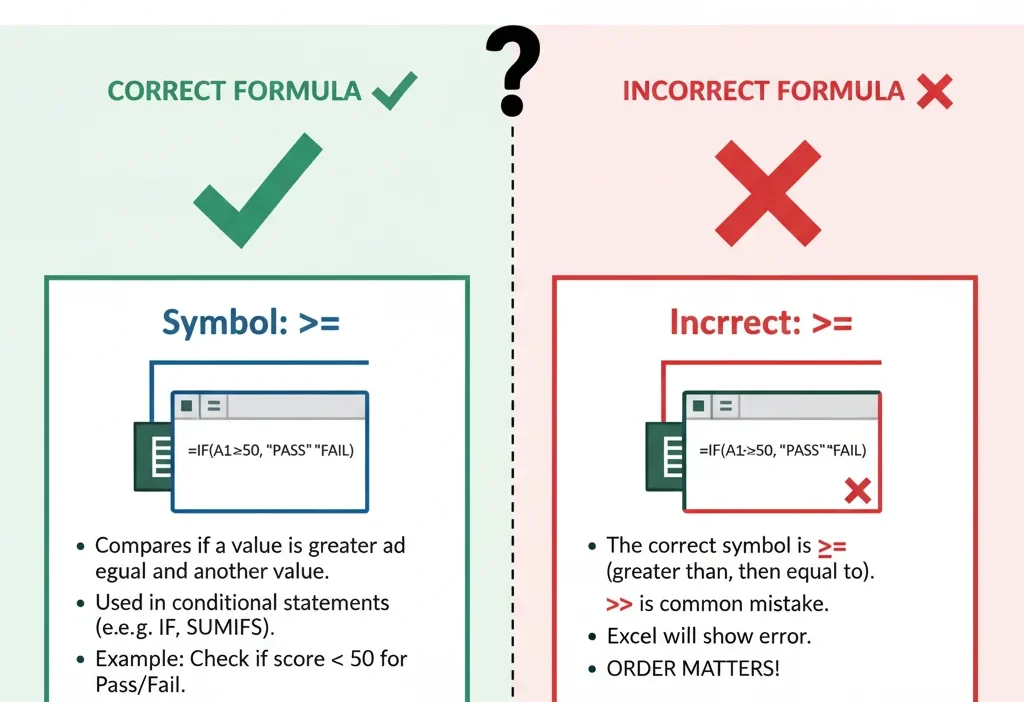
=A1>=B1→ True if A1 is bigger or equal to B1=10>=10→ True=C2>=50→ Checks if C2 has 50 or more
Imagine a school test: You pass if your score is greater than or equal to 50.
The Key Difference Between Greater Than and Greater Than or Equal To
| Feature | Greater Than (>) | Greater Than or Equal To (>=) |
|---|---|---|
| Meaning | Checks if one value is strictly larger | Checks if value is larger or exactly equal |
| Usage | For strict comparisons | For comparisons that include equality |
| Example | =A1>10 → True if A1 > 10 | =A1>=10 → True if A1 = 10 or A1 > 10 |
| Best Tip | Use when equality is not allowed | Use when equality counts |
Quick Tip: If you want to include the same number in your comparison, always use >=.
Hardware Accelerated GPU Scheduling On or Off: Secret Impact
Common Mistakes and How to Avoid Them
- Mistake: Using
>when you should include equality.- Incorrect:
=A1>50(you fail if A1 = 50) - Correct:
=A1>=50
- Incorrect:
- Mistake: Forgetting the equal sign in
>=.- Incorrect:
=A1> - Correct:
=A1>=B1
- Incorrect:
- Mistake: Confusing it with just
=- Incorrect:
=A1=50(checks equality only) - Correct:
=A1>=50(includes greater values)
- Incorrect:
These mistakes usually happen when users aren’t clear whether equality should count. Always ask yourself: Do I want the same value to pass this test?
When to Use Greater Than (>)
Use > when you want to check if a value is strictly bigger than another.
Examples in real life:
- Checking ages:
=A1>18→ True if older than 18 - Test scores:
=B2>75→ Only scores above 75 pass - Inventory alerts:
=C1>100→ True if stock exceeds 100 - Budget tracking:
=D1>500→ True if spending is over 500
Memory Hack: Think of > as a “strictly bigger than” rule — equality does not count.
When to Use Greater Than or Equal To (>=)
Use >= when the value can be equal or bigger.
Examples in real life:
- Passing score:
=Score>=50→ True if student scores 50 or more - Minimum age for a game:
=Age>=12→ True if age is 12 or older - Salary check:
=Salary>=30000→ True if salary is at least 30,000 - Order quantity:
=OrderQty>=10→ True if customer orders 10 or more
Memory Trick: Imagine a line in the sand. Anyone on or past the line counts. That’s >=.
Could Not Find or Load Main Class: Secret Tip to Solve It 2025
Quick Recap: Greater Than vs Greater Than or Equal To
>→ Strictly bigger>=→ Bigger or equal- Use
>for strict conditions,>=when equality counts - Double-check formulas to avoid common mistakes
- Think of real-life examples to remember which one to use
Advanced Tips
- History:
>and>=come from basic math symbols but were adapted into Excel formulas. - Formal Writing: Excel functions follow standard math logic, so always include the correct operator for precise calculations.
- Online Misuse: Typing
>or>=in chats instead of formulas can confuse readers, so context matters.
Mini Quiz
Fill in the blanks:
=A1___B1→ True if A1 is bigger or equal to B1.=Score___50→ True only if score is more than 50.=Age___18→ True if age is 18 or older.=C2___100→ True if C2 is strictly bigger than 100.=Salary___30000→ True if salary is at least 30,000.
Answers: 1. >= 2. > 3. >= 4. > 5. >=
FAQs
- What does greater than or equal to in Excel mean?
It checks if a value is bigger or equal to another value. - How is it different from greater than?
Greater than (>) is strict, while greater than or equal to (>=) includes equality. - Can I use
>=with dates in Excel?
Yes! It works with numbers, dates, and other comparable values. - What common mistakes should I avoid?
Forgetting the equal sign or using>when equality matters. - Is
>=used in real-life scenarios?
Absolutely. Passing exams, checking ages, stock levels, or minimum order quantities all use this logic.
Conclusion
Understanding greater than or equal to in Excel is simple once you know the difference. Remember: > is strict, while >= allows equality. Using the right operator ensures your calculations, reports, and data analysis are accurate.
Practice with real-life examples like test scores, ages, or budgets, and soon using these operators will feel natural. Always double-check your formulas to avoid common mistakes, and use our memory tips to recall the rules quickly.
With these skills, even beginners can confidently write Excel formulas without errors. Keep practicing, and your mastery of Excel will grow every day.

Marianne Solace is a lifestyle and personal-growth writer for WordContrast.com. Her work blends inspiration with practicality, offering thoughtful insights on wellness, creativity, and mindful living. When she’s not writing, Marianne enjoys journaling with a cup of coffee, exploring art museums, and helping others find balance through the written word.